
Tachiyomi for PC – How to Run on Windows & Desktop
Tachiyomi APK is a free Android manga reader, but many users want it on a bigger screen. You cannot install it directly on a PC, so the simplest way is to run it through an Android emulator. This guide shows you how to install Tachiyomi on Windows, macOS, or Linux, which emulator works best, and how to avoid common issues. The goal is to help you set it up fast and start reading manga on your computer with no confusion.
What Is Tachiyomi?
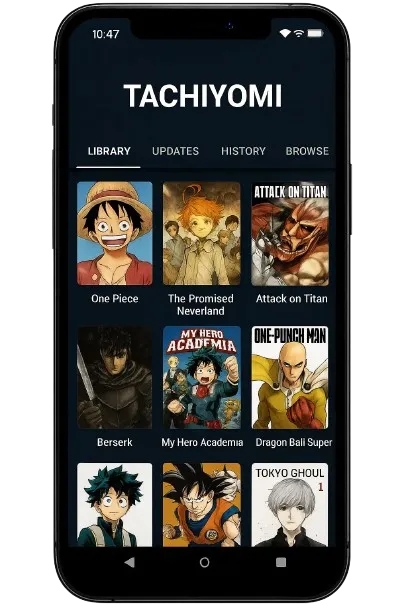
Tachiyomi is a free and open-source manga reader for Android. It lets you read manga from many sources by adding extensions, and you can also download chapters for offline reading. The app is lightweight, easy to use, and highly customizable.
Tachiyomi is not available on the Google Play Store, so users install it by downloading the APK from the official website or trusted mirrors. The app is no longer updated as actively as before, but many people still use it because it offers a clean layout, smooth reading, and strong extension support.
Why Use Tachiyomi on PC?
Using Tachiyomi on a PC gives you a better reading experience. A bigger screen makes panels clearer, text easier to read, and long chapters more comfortable to scroll through. You can also use your keyboard and mouse, which makes navigation faster.
Running Tachiyomi on a computer is helpful if you read for long periods or multitask while reading. It also gives you more storage space for offline downloads. Even though Tachiyomi is an Android app, using it on PC with an emulator feels smooth once everything is set up.
How to Install Tachiyomi on Windows, macOS, or Linux
Since Tachiyomi is an Android app, you need an Android emulator to run it on your computer. The process is almost the same on all systems.
Step 1: Choose an Emulator
Pick one of these popular emulators:
- BlueStacks (easy to use)
- LDPlayer (fast and lightweight)
- NoxPlayer (good for older PCs)
- MEmu (stable and simple)
Any of them will run Tachiyomi smoothly.
Step 2: Download the Emulator
Go to the official website of the emulator you choose and install it on your PC or laptop.
Step 3: Download the Tachiyomi APK
Download the latest Tachiyomi APK from the official GitHub page or trusted mirrors. APK files are required because Tachiyomi is not on the Play Store.
Step 4: Install Tachiyomi Inside the Emulator
Open your emulator and drag the APK file into it. The emulator will install Tachiyomi automatically.
Step 5: Open Tachiyomi and Add Extensions
After installation, launch Tachiyomi inside the emulator.
Go to Extensions, choose your sources, and start reading.
Emulator Comparison – Which Is Best?
Not all emulators work the same. Here is a quick, clear breakdown to help you choose the right one for Tachiyomi.
BlueStacks
Best for most users.
It is easy to install, stable, and works well on modern PCs. It loads Tachiyomi fast and handles large chapters smoothly.
LDPlayer
Best for speed.
LDPlayer uses fewer system resources, which helps older or mid-range PCs. It feels light and responsive when switching between chapters.
NoxPlayer
Best for older computers.
Nox runs well on low RAM or old processors. It is not the fastest, but it is reliable and simple to use.
MEmu
Balanced choice.
MEmu offers good performance without being too heavy. It is stable and works well for long reading sessions.
Summary
- Want the easiest option? BlueStacks
- Want speed and smooth scrolling? LDPlayer
- Using an older PC? NoxPlayer
- Want something stable and simple? MEmu
Optimizing Tachiyomi for PC – Tips and Troubleshooting
A few quick settings can make Tachiyomi run faster and smoother on your computer.
Improve Performance
- Increase RAM and CPU in your emulator settings.
- Set resolution to 1080p for clearer pages without slowing down your system.
- Close background apps to free up memory.
Fix Common Issues
Blank pages:
Clear Tachiyomi’s cache or switch to a different extension.
Crashes or freezing:
Restart the emulator or reinstall the APK if needed.
Slow loading:
Update your extensions or choose sources with faster servers.
Better Reading Experience
- Use full-screen mode for a cleaner layout.
- Try different reading modes like vertical, horizontal, or webtoon-style.
- Adjust brightness and filters for long reading sessions.
These small tweaks help you get smoother performance and a more comfortable reading setup.
Alternatives and Desktop Options
If you do not want to use an emulator, or if Tachiyomi stops working well, there are other manga readers you can try on your computer.
Hakuneko
A desktop app that lets you download and read manga from many sources. It works on Windows, macOS, and Linux. The design is simple, but it gets the job done.
Komga
A local manga and comic server you host yourself. Great if you already have your own files and want clean organization and fast reading on any device.
YACReader
A smooth and lightweight reader for comics and manga. Best for users who read files they already own instead of using online sources.
Free Manga Websites
If you want to read without installing anything, many legal manga websites offer web readers. They work directly in your browser and do not require any setup.
When to Choose an Alternative
- If your PC is too slow for emulators
- If you prefer a native desktop app
- If you only read downloaded files
- If you want a long-term solution with active updates
Final Thoughts
Using Tachiyomi on a PC is easy once you set it up through an Android emulator. It gives you a bigger screen, smoother reading, and more control. BlueStacks and LDPlayer are the best choices for most users, and the setup only takes a few minutes.
If emulators feel slow or complicated, you can switch to desktop alternatives like Hakuneko or Komga. They work well and do not require Android support.
Overall, Tachiyomi on PC is a solid option if you want a clean, flexible manga reader with more screen space and better comfort.